

BRI-Proflex-merger-Inspira-white

Welcome to BRI!

Use the following FAQs, resources, videos, and tools to maximize your experience with the transition from Pro-Flex to BRI. 

Migration Overview

Five Recommended Actions to Take Day 1 of Your Plan Year

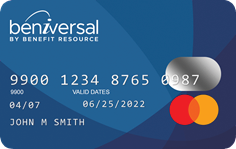
The fastest way to activate your Beniversal® Prepaid Mastercard® is to call the activation number on the card. This option takes under one minute to complete. You can also activate your card online when you log in to your BRIWEB account with your Login ID and password. If you are logging in for the first time, you will need to complete the Register an Account process. Once logged in, navigate to the Profile section by expanding the menu under your name

Participants accessing the site for the first time will be required to register a Custom Login ID.

On the BRIWEB Login page, select the blue “Register an Account” link. Follow the instructions provided. You will need the following pieces of information to register:

  • COMPANY CODE: Provided by your employer
  • PERSONAL INFORMATION: First name, last name, date of birth, home zip code
If the system cannot identify you by the information above, you will also need to provide:
  • MEMBER ID/REGISTRATION ID: Typically a 9-digit ID selected by your employer (i.e. SSN, payroll ID, or even a combination)

Click here to learn more.

Manage Your Account On-the-Go

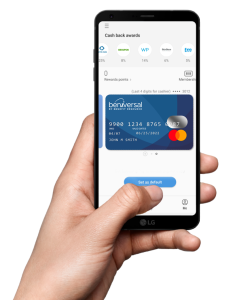
The BRIMOBILE app is designed to provide on-the-go access to your tax-freebenefit accounts. It’s available in the App Store and Google Play.

Click here to learn more.

You can set-up direct deposit by logging into your account on BRIWEB. Navigate to the Profile section. Enter the bank account and routing number in the Direct Deposit section.

In order to receive email notifications regarding your account, it is recommended that you update your profile to include a personal email address. You can update your email address on BRIWEB by navigating to the Profile section.

If you would like your spouse to be able to access your account(s), you must complete and submit the PHI Authorization Form.

ADDITIONAL ACTIONS HSA PARTICIPANTS SHOULD TAKE

See the “HSA” section of this page for additional information on the HSA migration.

An HSA is individually owned and requires your approval to move existing funds from WEX to Inspira Financial. If you have an email address on file, you will receive an email with a link to provide electronic consent. Alternatively, a paper form is included with the mailing to the address on file, which can mailed to Benefit Resource, PO Box 642, Willow Grove, PA 19090

If you do not complete the HSA Transfer Authorization Request by the deadline stated in these communications, your account will be converted from an employer-sponsored plan to an Individual HSA. As an Individual HSA, you will be responsible for all fees associated with the account.

As a part of the migration, you will receive a new account number and routing number. If you are making contributions to your HSA using your account number and routing number, you will need to update information accordingly.  

Direct deposit and beneficiary information will not be transferred. After the migration is complete on June 11th, you will need to re-input this information. Instructions on doing so are available in the “HSA” section of the Pro-Flex Migration Hub.

Any existing investments you have with WEX will be liquidated during the migration process. You can begin reinvesting your funds in the HSA Management Portal starting June 11th. See information and tips on getting started in the “HSA” section of the Pro-Flex Migration Hub. 

WANT ADDITIONAL TIPS ON GETTING STARTED WITH BRI?

Visit our Welcome page. There, we provide you with everything you need to know to manage your account(s) and get the most out of your benefits plans.

Account Management

Frequently Asked Questions

You can access your account by:

  1. Logging in to BRIWEB online.
  2. Accessing your account on the BRIMOBILE app (available in the App Store and Google Play).
  3. Call (877) 342-0825. Provide your card number and CVV to hear your account balance.

Participants accessing the site for the first time will be required to register a Custom Login ID. You will receive an email prior to your migration date with the information you’ll need to register on BRIWEB including your company code, member ID, and initial password.

On the BRIWEB Login page, select the blue “Register an Account” link. Follow the instructions provided.

The following are required during registration: 

  • Company Code: Provided by your employer
  • Member ID: Typically a 9-digit ID selected by the employer (i.e. SSN, payroll ID)
  • Personal Info: First name, last name, zip code, date of birth
  • If you have an email address on file with Pro-Flex, BRI will send an email confirmation when your Beniversal Card has been ordered and you can begin registration with BRIWEB.
  • If you do not have an email address or your plan benefits do not include a card, please wait until migration is complete to register.

Once you have your BRIWEB account login information, you can set up your Direct Deposit, submit claims, and even chat live with our Participant Services team if you have any questions.

You will see an aggregate year-to-date view of all deposits and withdrawals that occur prior to the migration date.

Video Resources

Submitting Claims

Frequently Asked Questions

You can start submitting your claims to BRI starting the Monday after your migration date. Please refer to the email communication for the exact date.

Yes! Your direct deposit information will not carry over and will have to be re-entered. You will need your Bank Routing Number and Account Number.

  • For a checking account, you will find these numbers at the bottom of your personal check.
  • For a savings account, contact your bank to get their Bank Routing Number and your Savings Account Number.

There are three ways to submit your claims:

  • Option 1: Submit online: Login to BRIWEB at the secure participant login. Then, click on Submit Claims/Receipts and follow the instructions.
  • Option 2: Submit via BRIMOBILE App: Download the free BRIMOBILE app from Google Play or the App Store. After logging in, tap Receipt Requests from the menu bar and take a photo/upload documentation through your iPhone or Android device.
  • Option 3: Submit via mail: Visit the Forms section to find the claim form you need. You can also go to the Resource Center and filter by Forms to find claim forms. Once you have the one you need, save it, fill it out, and then send it to us at the address printed on the document.
Need additional assistance?

View our step-by-step walkthrough on how to submit claims! Just select the option you want, Mobile or Desktop, and follow the instructions! Click here for the walkthrough.

Your claims will be processed within 3 to 5 days after they are received at our processing center.

The last day to submit a claim to Pro-Flex is 10 days prior to your migration date. Please refer to the letter you received regarding your exact claims deadlines.

Debit Card

Frequently Asked Questions

Your existing card(s) will be deactivated ten days prior to your migration date and your new Beniversal Prepaid Mastercard will arrive prior to your migration date.  You may begin using your new card the following Monday after you activate it. For exact dates, please refer to the email you received.

The fastest way to activate your card is to call the activation number on the card. This option takes under one minute to complete.

You can also activate your Beniversal Card online when you log in to your BRIWEB account with your Login ID and password. Once logged in, navigate to the Profile section by expanding the menu under your name.

Note: If you are logging in for the first time, you will need to complete the Register an Account process. 

A digital wallet is a third-party including Google Pay, Samsung Pay, or Apple Pay that allows you to add debit and credit cards as payment methods that are accessed via your phone. To add your Beniversal Card to a digital wallet, you must first have the digital wallet installed. Once you have installed the digital wallet, you can follow the instructions below to add your Beniversal Card as a payment method.

Please note: In order to complete registration, the mobile phone number associated with your digital wallet must be on file with BRI. You can provide one by modifying your Profile information on BRIWEB.

HSA Migration

Your account-based benefits offered through your employer will be migrating to BRI and the HSA custodian for your employer-sponsored plan will be changing from WEX Health, Inc (“WEX”) to Inspira Financial Health, Inc (“Inspira”) effective June 2024.  BRI is an Inspira Financial Solution and will administer the account.

As a part of the transfer, a new account will be established on your behalf. If your identity cannot be systematically verified, you may be asked to provide additional documentation during the account set-up process.

REQUIRED ACTION: COMPLETE THE HSA TRANSFER AUTHORIZATION FORM

An HSA is individually owned and requires your approval to move existing funds from WEX to Inspira Financial. If you have an email address on file, you will receive an email with a link to provide electronic consent. Alternatively, a paper form is included with the mailing to the address on file, which can mailed to Benefit Resource, PO Box 642, Willow Grove, PA 19090

If you do not complete the HSA Transfer Authorization Request by the deadline stated in these communications, your account will be converted from an employer-sponsored plan to an Individual HSA. As an Individual HSA, you will be responsible for all fees associated with the account.

FREQUENTLY ASKED QUESTIONS

Yes. Once your Inspira HSA is established, you will receive a welcome communication indicating your Inspira HSA has been created. This communication will provide additional information about your Inspira HSA, including how to access your HSA account number. You can expect to receive your welcome email mid-April to mid-May.

HSAs are individual bank accounts and as a result are subject to identity verification procedures. The new Inspira HSAs will need to be run through identity verification procedures to verify your full name, social security number, date of birth, and street address (PO Box can be used for mailing but not for account creation).

This information is first run through an identity verification system. If an individual’s identity cannot be verified through systematic options (on average, 1-2% cannot be systematically verified), additional documentation is needed from either the employer or the participant to open the account).

Employees will receive a request by email (subject line: “[ACTION NEEDED] One More Step to Open Your HSA”) and mail if additional documentation is needed. If the additional documentation is not provided by either the employer or the participant within 45 days, the account request is closed. Any deposits received prior to the account creation will be returned to the originator and will not be deposited into an HSA in the individual’s name.

You may make contributions to your WEX HSA as usual through May 31, 2024. Employer contributions facilitated through BRI beginning June 1, 2024 will become immediately available through your Inspira HSA.

As previously mentioned, you will receive a new HSA account number and routing number through the transition process. If you are making contributions directly to your HSA through an external bank account or through another platform, you will need to update the account number and routing number used to initiate deposits after May 31, 2024. Contributions directed to your WEX HSA after May 31st may be returned to the originator.

If you authorize the transfer of funds to the Inspira HSA, your investments will be liquidated beginning May 28, 2024 and transferred to Inspira in cash. If you prefer to manage the liquidation of investments, please plan to complete your trades by May 27, 2024. Funds are expected to transfer and post to the Inspira HSA between June 7-10, 2024. Once funds have posted, you will have the opportunity to invest* funds in 1000+ top-rated stocks, mutual funds, and ETFs specifically curated for you by Morningstar Investment Management. See the Investment Overview section for more details.

*Investments are: Not FDIC Insured • May Lose Value • Not Bank Guaranteed

HSAs are individually-owned and require your approval to move the funds. In order to be included in the bulk transfer associated with your employer-sponsored account, you must complete the HSA Transfer Authorization Request by May 22, 2024. If you do not complete the HSA Transfer Authorization Request by May 22, 2024, your account will be converted from an employer-sponsored plan to an individual HSA. As an individual HSA, you will be responsible for all fees associated with the account.

HSA MANAGEMENT PORTAL

The new HSA Management Portal will give you access to additional features and functionality to enhance your account management experience. Click the button below to see a summary of these features, or continue reading to get detailed instructions.

Once logged in, select the “Health Savings Account” tab from the left sidebar. There, you’ll see:
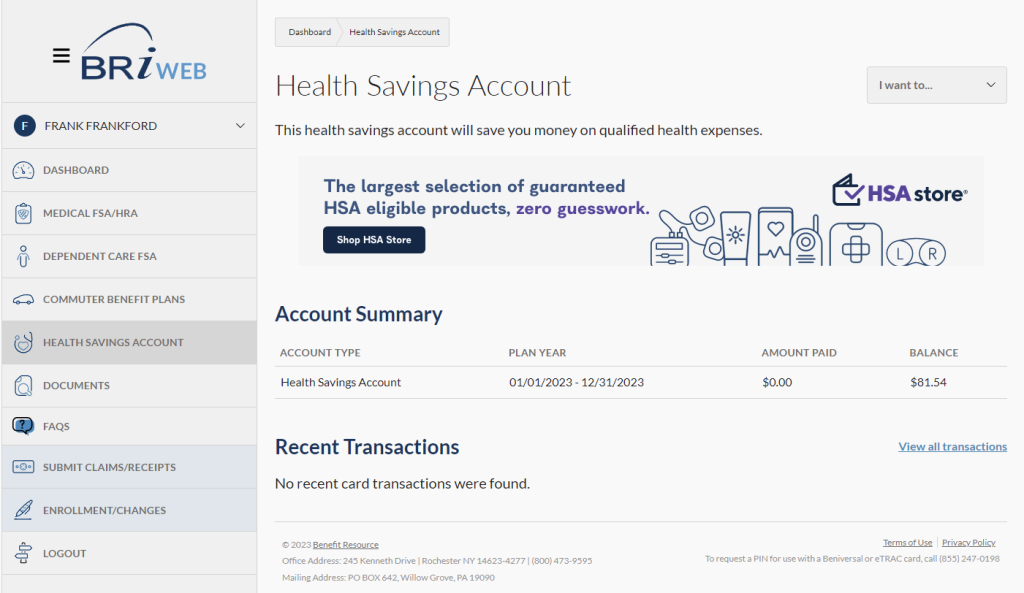
  • An “Account Summary” section showing your plan year, amount paid, and current balance.
  • A “Recent Transactions” section showing transactions from the past 30 days. You can select “view all transactions” to view all account activity, including deposits, debit card settlements, and interest payments.

BRI HSA Account Summary and Recent Transactions page

If you pay for an HSA-eligible expense with a source of payment other than your Beniversal Card, you can reimburse yourself with HSA funds.
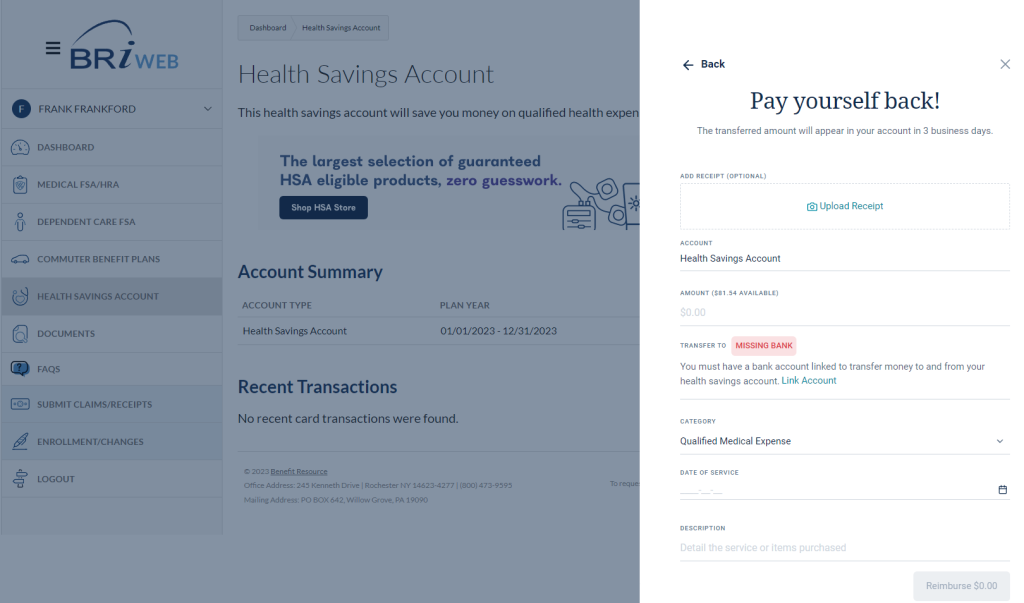
  1. Click on the “Health Savings Account” tab.
  2. From the “I want to…” drop down menu on the right-hand side of the page, click “Reimburse Myself.”
  3. You will be prompted to enter the amount of your request. If you haven’t already linked your personal bank account to your Health Savings Account, click the “Link Account” link and follow the necessary steps.
  4. Once your bank account has been successfully linked, you can enter the expense information (amount; expense date) to request reimbursement. If you would like to link receipts or add a note for your records, it will be available if you should ever need it in the future.

screen to reimburse yourself for an HSA-eligible expenses

Account statements will be available on a monthly basis. To access them, click on the “Health Savings Account” tab. From the “I want to…” dropdown menu on the right-hand side of the page, click “Manage my HSA” to be redirected to the HSA management portal. Once there, select “Profile” from the left menu. From the sub-menu, select “Statements.” All statements are available as a PDF for download by clicking the “View” button to the right of the item you are interested in accessing. 
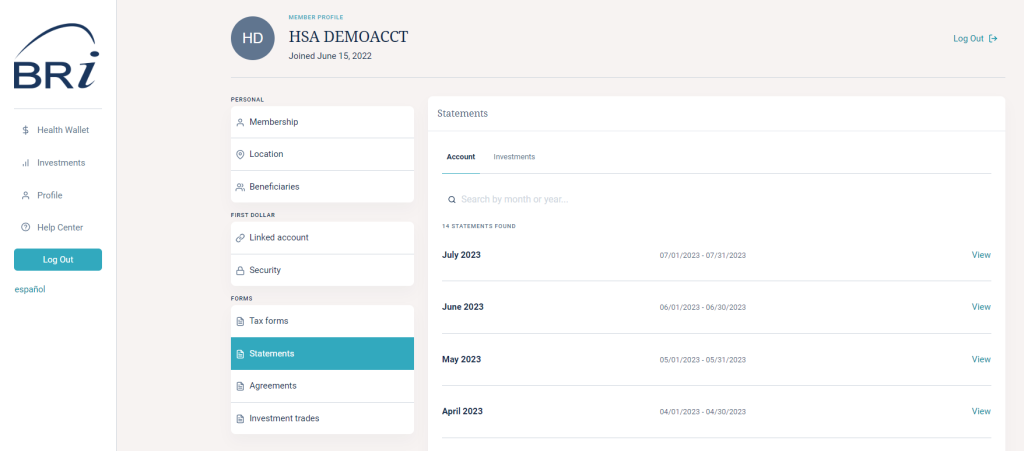
HSA account statements page

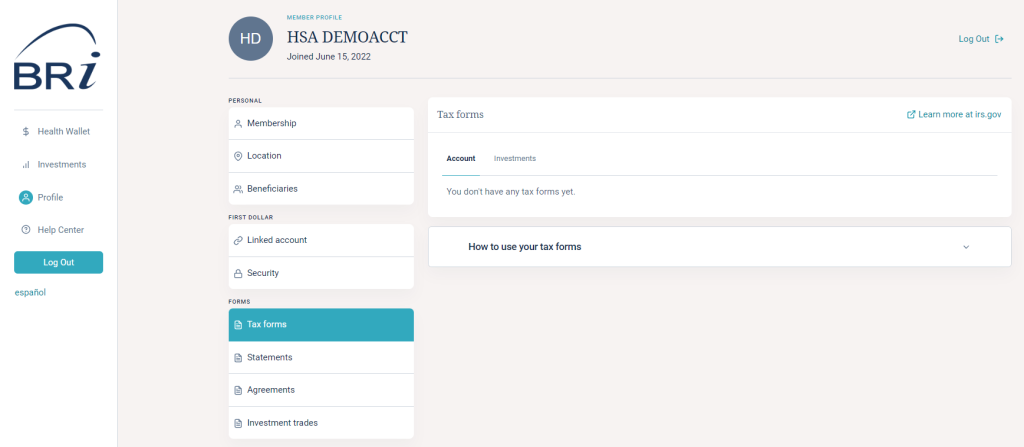
HSA tax documents are generated based on the type of activity you have in your account in a given year. Access your documents by clicking on the “Health Savings Account” tab. From the “I want to…” dropdown menu on the right-hand side of the page, click “Manage my HSA” to be redirected to the HSA management portal.

Once there, select “Profile” from the left menu. From the sub-menu, select “Tax Forms.” All tax forms are available as a PDF for download by clicking the “View” button to the right of the item you are interested in accessing. Tax documents you might find there include:
  • 1099-SA: You may receive one or more forms if funds were withdrawn from your HSA. A separate form is created for each withdrawal (or distribution) type and may include normal distributions, excess contributions, disability, death distribution, and prohibited transactions.
  • 5498-SA: You may receive one form if funds were deposited into your HSA for a given tax year. It reports contributions made in the calendar year, contributions made for the prior year in the current year, rollover contributions, and fair market value of the HSA. A preliminary report is available by January 31 for the prior year. A final copy is provided between April 15 and May 31 to capture any contributions made in the current year for the prior year.

HSA tax forms page

Like many retirement-based accounts, HSAs allow the owner of the account to set up a beneficiary who would receive the HSA funds upon their death. To set a beneficiary for your account funds, click on the “Health Savings Account” tab. From the “I want to…” dropdown menu on the right-hand side of the page, click “Manage my HSA” to be redirected to the HSA Management Portal.

Once there, select “Profile” from the left menu. From the sub-menu, select “Beneficiaries”. Then just select the “Add Beneficiary” button and complete the information requested. 
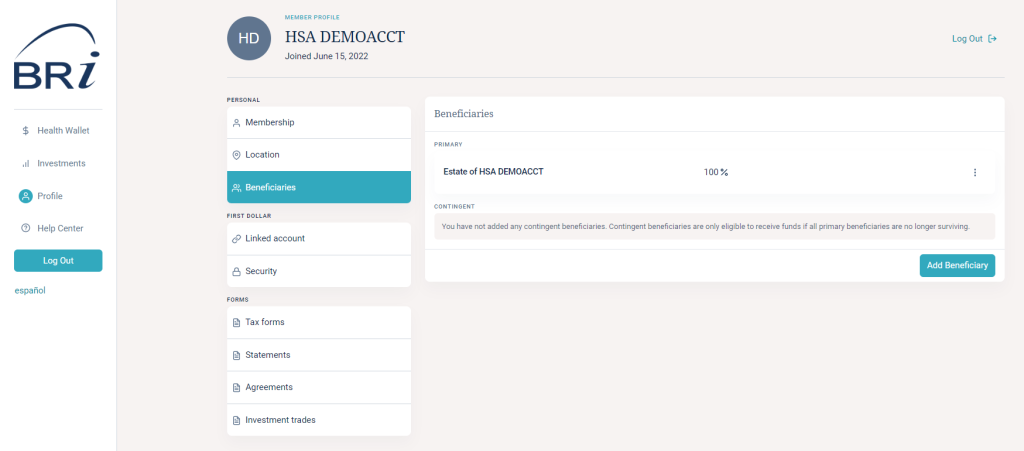
page to add a beneficiary for your HSA

If you are looking to move HSA funds from a prior HSA (other than your WEX HSA) to your Inspira HSA, you can complete either an “HSA Transfer” or an “HSA Rollover.” The rules and limitations for each are specific, so it is important to understand the differences between these options in order to decide which path works for you. Download our Transfer vs. Rollover Comparison Flyer to learn more about which may be right for you depending on your situation. 

TO REQUEST AN HSA TRANSFER (FORMALLY KNOWN AS AN HSA TRUSTEE-TO-TRUSTEE TRANSFER):

  • Complete the “HSA Transfer Form” and send it to the PRIOR HSA CUSTODIAN. A pre-populated HSA Transfer Form can be accessed in your account through BRIWEB. Or, click here to download a blank one.
  • Use this option if you intend to: (1) Close the HSA, (2) Send all HSA assets, (3) Have invested HSA funds that will need to be liquidated or transferred, (4) Have already completed an HSA Rollover in the last 12-months.

TO REQUEST AN HSA ROLLOVER:

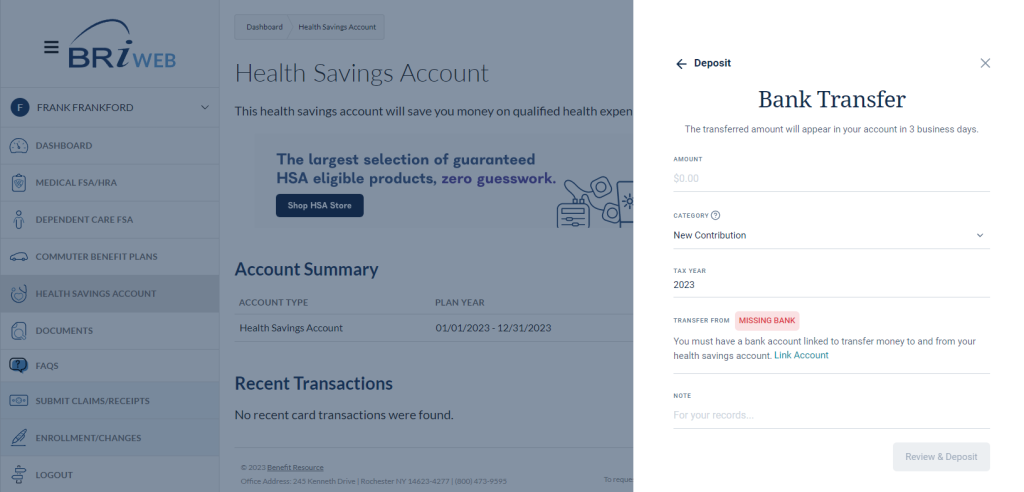
  1. Login to BRIWEB and click on the “Health Savings Account” tab. From the “I want to…” dropdown menu on the right-hand side of the page, click “Make a Deposit.”
  2. Link your bank account. When setting up your linked bank account, you will have the option to immediately link the account through an integration with Plaid. If your bank is not available in the search or if you prefer, you can link your account by entering the routing number and bank account number. If you use this option, two small deposits will be made to the account and you will need to verify the amounts before the account is linked. This may take up to 2-3 days to complete.
    • To pull funds from the prior HSA and have them directly deposited to your Inspira HSA, you will need to set-up your prior HSA as your linked bank account.
    • If you received a check from your prior custodian, you can deposit the funds into a personal account and use that personal account as your linked bank account.
  3. Return to the “Make a Deposit” screen once your bank account is linked. When scheduling your HSA rollover, you will need to enter the amount and category. If you would like to enter a note for your records, you may do so. Click “Review and Deposit.” Funds are typically moved within 2-3 business days.

Make a deposit screen for HSA transfers

Login to BRIWEB and click on the “Health Savings Account” tab. From the “I want to…” dropdown menu on the right-hand side of the page, click “Manage my HSA”.

Once you’ve been redirected to the HSA Management Portal, select “Invest” from the quick actions in the upper right corner. If you are looking to create an investment account for the first time, you will be walked through the investment account set-up wizard. Click “Start Investing” to get started. Upon completion, you will receive immediate confirmation that your investment account has been created.

You will be brought to the “Investment Dashboard”. You can invest in 1000+ stocks, mutual funds, and ETFs curated by Morningstar Investment Management. There are no investment minimums. To get started, begin typing the name or symbol of the investment. Once you have identified an investment, you will be presented with further information and have the option to BUY.

Get an overview of how to invest your HSA in the next section.

Investments are: Not FDIC Insured • May Lose Value • Not Bank Guaranteed
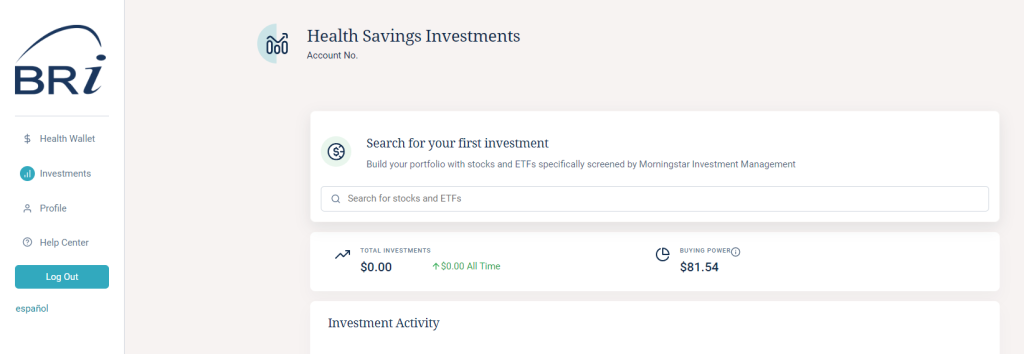
HSA investments page

INVESTMENT OVERVIEW

Any existing investments you have with WEX will be liquidated during the migration process. You can begin reinvesting your funds in the HSA Management Portal starting June 11, 2024. After opening an investment account in the HSA Management Portal, you can begin to invest* your HSA funds in 1000+ top-rated stocks, mutual funds, and ETFs specifically curated for you by Morningstar Investment Management.

no minimum balance

Invest for as little as $1 per month upon account creation. After an investment balance of $5,000 is reached, accounts will be charged an investment balance fee of 0.01% monthly.

When buying:
All trades are made in real-time during regular trading hours. Purchases clear from your HSA immediately. Fractional shares are available.1
When selling:

It may take 2-3 days for proceeds to return to your HSA cash account. Investments are not available for debit card purchases and online transfers.

*Investments are: Not FDIC Insured • May Lose Value • Not Bank Guaranteed

Searching for Investments2

HSA investing is self-directed. BRI is not a registered advisor and cannot provide advice regarding specific investment selections – please consult a registered investment advisor for recommendations and investment advice. However, here are some ways to search for potential investments. 

To purchase a stock, simply enter the name or stock symbol in the search bar. A summary of the stock is presented, including market stats. You will be able to invest in most stocks available through the New York Stock Exchange. Certain stocks may not be available. View the directory of stocks available on the New York Stock Exchange.

Common search terms you may want to use if you know the types of investments you would like to consider:

  • Emerging Markets
  • International Equity
  • Aggregate
  • Treasury
  • Bond
  • Small cap
  • Mid cap
  • Large cap
  • Real-estate
  • Short-term
  • Long-term
  • Growth
  • Value

1. Please note that the terms and conditions governing the BRI HSA Investment Account, including the timing of trades, are contained in the Investment Agreement.

2. Benefit Resource, LLC is an affiliate of Inspira Financial Health, Inc. and Inspira Financial Trust LLC. Benefit Resource, LLC and its affiliates do not provide legal, tax or financial advice. Please contact a professional for advice on eligibility, tax treatment and other restrictions.  Investment services are independently offered through an independent, third-party registered investment advisor, Morningstar, Inc., and powered by DriveWealth brokerage technology in collaboration with First Dollar. The HSA investment account is an optional, self-directed service, and neither Benefit Resource, LLC nor any of its affiliates provide investment advice. By transferring funds into an HSA investment account, you will be exposed to a number of risks, including the loss of principal, and such funds are not FDIC or NCUA insured, or guaranteed by Benefit Resource nor any of its affiliates.  You should always read the prospectus for the funds you intend on purchasing. The prospectus describes the funds, investment objectives and strategies, their fees and expenses, and the risks inherent to investing in each fund. Investing through the Benefit Resource platform is subject to the terms and conditions of the Health Savings Account Custodial Agreement and the Investment Agreement.  System response and account access times may vary due to a variety of factors, including trading volumes, market conditions, system performance, and other factors.

Contact Information

If you have additional questions or need additional assistance, please reach out to Participant Services at the following: